The most useful UX design best practices are not about trends or clever animations. They are about helping people understand what you offer, find what they need and finish the task they came to do, whether that is booking a call, buying a product or filling in a form.
Here are the principles that matter most for business websites and apps, with practical checks you can apply this week.
Key takeaways
- Clarity beats cleverness: every page should make its purpose and next step obvious within seconds.
- Visual hierarchy, short forms and clear feedback states remove most of the friction users feel.
- Design for thumbs first on mobile, and follow WCAG 2.2 so everyone can use your product.
- Test with real users early and often; small, informal tests reveal problems analytics cannot explain.
Start with clarity and a strong hierarchy
Before you think about layout or color, decide what each page is for. A service page might exist to generate inquiries. A product page exists to help someone decide and buy. When a page tries to do five jobs at once, visitors hesitate.
A simple test: show the page to someone unfamiliar with your business for five seconds, then ask what the company does and what they could do next. If they cannot answer, the page needs work.
- Write plain headlines. Say what you do in words your customers use, not internal jargon.
- Use one primary call to action per screen. Secondary actions can exist, but they should look secondary.
- Keep navigation predictable. Familiar labels such as “Services,” “Pricing” and “Contact” are easier to scan than creative ones.
- Stay consistent. Buttons, links and icons should look and behave the same way everywhere.
Use visual hierarchy to guide the eye
Most visitors scan rather than read. Make the key message the largest, boldest element, use white space to group related items, reserve your strongest accent color for primary actions and keep text in short, well-labeled chunks. If everything is emphasized, nothing is.
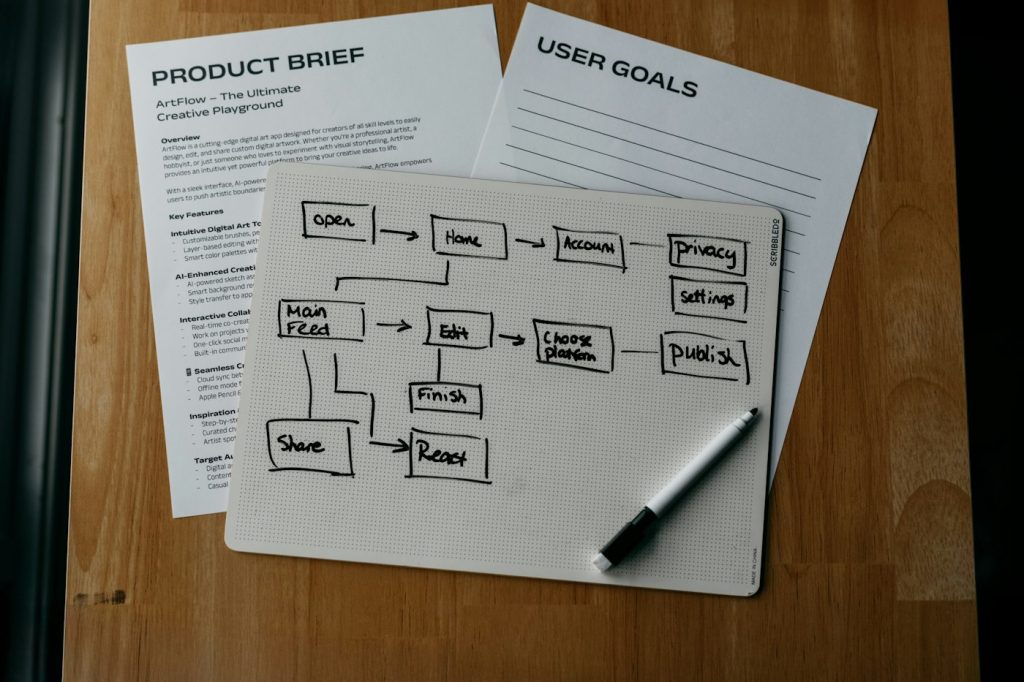
Design forms that people actually finish
Forms are where many business websites quietly lose leads and sales. Every extra field, confusing label or vague error message adds friction at exactly the moment someone is ready to act.
- Ask only for what you need. If a phone number is optional, consider removing it or clearly marking it as optional.
- Use visible labels. Placeholder text that disappears when someone starts typing is not a substitute for a label.
- Choose the right input types. Email, phone and number fields should trigger the matching mobile keyboard.
- Validate helpfully. Explain what went wrong and how to fix it, next to the field in question, without wiping what the user already typed.
- Break long forms into steps. A progress indicator makes multi-step forms feel manageable.
Design for mobile and thumb zones
Many people browse business sites on their phones, often one-handed. That changes where key controls should live and how large they need to be.
- Place primary actions within easy reach. The lower and middle parts of the screen are easier to tap with a thumb than the top corners.
- Make tap targets generous. Small, tightly packed links lead to mis-taps and frustration.
- Consider sticky actions. A persistent “Call” or “Book now” button can help on service and booking pages, as long as it does not cover content.
Speed is part of mobile UX too. A beautiful page that loads slowly still feels broken. Our guide on how to improve Core Web Vitals covers the performance side in more detail.
Give clear feedback at every step
People need to know the system heard them. When a tap produces no visible response, users tap again or leave.
- Interactive states: buttons and links should have distinct hover, focus, active and disabled styles.
- Loading states: show a spinner, progress bar or skeleton screen when something takes time.
- Success messages: confirm what happened and what comes next, such as “Thanks, we will reply by email.”
- Error states: write errors in plain language and avoid blaming the user.
Make accessibility part of the process (WCAG 2.2)
Accessibility is a core UX practice, not an add-on. The Web Content Accessibility Guidelines (WCAG) 2.2, published by the W3C in 2023, are the current reference point for many organizations, and Level AA is a common target.
Accessibility basics to check
- Color contrast: body text should meet the AA contrast ratio of 4.5:1 against its background.
- Keyboard access: every link, button and form control should be usable with a keyboard, with a clearly visible focus indicator.
- Focus not obscured: new in WCAG 2.2, sticky headers and cookie banners should not hide the element that currently has focus.
- Target size: WCAG 2.2 adds a minimum target size for pointer inputs, which supports the thumb-friendly design described above.
- Accessible authentication: avoid login steps that rely on memorizing or transcribing information without alternatives such as password managers or copy and paste.
- Alt text and headings: describe meaningful images and use headings in a logical order so screen reader users can navigate.
Accessible design usually improves the experience for everyone.
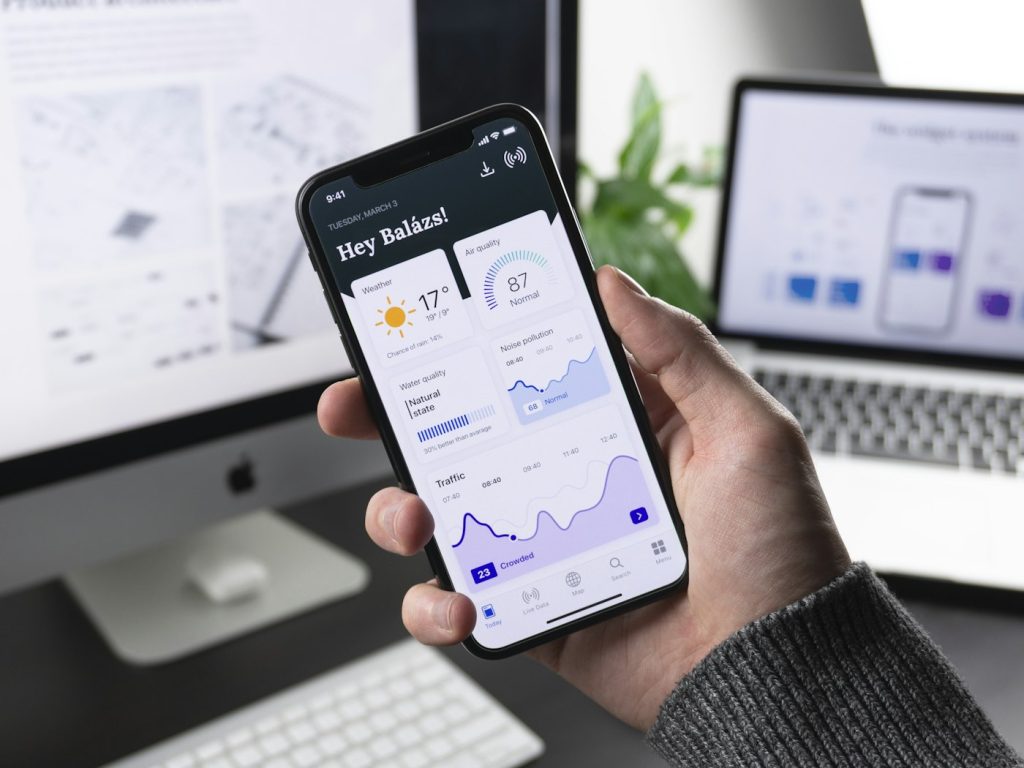
Test with real users, then iterate
No team can fully predict how strangers will use its product. Usability testing replaces guesses with observation, and it does not need a large budget.
- Pick a few key tasks, such as “find the price of this service” or “request a quote.”
- Recruit a handful of people who resemble your customers.
- Watch without helping. Ask them to think aloud and note where they hesitate or get stuck.
- Fix the biggest problems first, then test again.
Pair qualitative testing with analytics, heatmaps or session recordings. Data shows where people drop off; watching users explains why. Testing also helps you separate useful web design trends from ones that look good but get in the way.
Frequently asked questions
What is the most important UX design best practice?
Clarity. If visitors cannot quickly understand what you offer and what to do next, other improvements have limited impact.
Is UX design the same as UI design?
No. UX design covers the whole experience, including structure, flows and content, while UI design focuses on the visual and interactive layer. The two work best when planned together.
Do small businesses need to follow WCAG 2.2?
Legal requirements vary by country and sector, so check what applies to you. Either way, following WCAG 2.2 AA is a sensible goal because it makes your site usable for more people.
How often should we run usability tests?
Test whenever you plan a significant change, such as a redesign, a new checkout or a new feature. Small, regular tests are more useful than one large study every few years.
Want a clearer, easier experience for your customers?
Tech Baksho designs user-friendly interfaces for business websites and apps, from research and wireframes to accessible, polished UI.